The short answer
To find out if a picture is AI generated, run it through a detector and then check it by eye. The checker above returns Likely AI-generated, Likely real, or Uncertain, plus a confidence score. Treat that as strong evidence, not proof.
- The free plan includes 20 checks per month.
- Free checks need no sign-up and no email.
- Supported formats are JPG, PNG, WebP, and HEIC.
- HEIC photos are converted to JPEG in your browser before upload.
- Photos larger than 2048 pixels on the long side are reduced to 2048 pixels automatically.
People ask "is this photo AI?" about all kinds of images: a viral news photo, a profile picture on a dating app, a product shot from a new seller, or a picture a friend forwarded. The quickest first step is the same for all of them. Drop the picture into the box above and read the result. If the stakes are high, follow up with the manual checks further down this page.
How to check a picture
- Get the best copy you can. The original file from a camera or phone works better than a screenshot or a picture saved from social media.
- Upload it or paste the image URL. Drag the picture into the box, press Choose image, paste it with Ctrl+V, or paste a direct link to the image and press Check. JPG, PNG, and WebP work. iPhone HEIC photos work when your browser can open them.
- Wait for the result. The picture is scored on our own server. It is not sent to a third-party AI service.
- Read the verdict and confidence. See the next section for what the numbers mean.
- Check it by eye. Use the signs in the "How to tell if an image is AI" section to see whether the picture backs up the result.
The same tool is on the home page, where you can check is this image ai for any single image. If you have a whole folder of pictures, the ai image checker lets Pro and Max users check up to 20 at once.
What the result means
Two open-source detectors each score the picture, and the verdict uses their average. An average of 50% or more toward AI is called Likely AI-generated. Under 35% is Likely real. In between is Uncertain, and so is any picture where the two detectors strongly disagree.
The confidence score shows how strongly the result leans. For a Likely AI-generated picture it is the AI score itself. For a Likely real photo it is the opposite, so an AI score of 22% shows as 78% confidence that the photo is real. Uncertain results never show more than 65%. An Uncertain result does not use up your monthly allowance.
The free result shows one key reason. Pro shows every reason, including file facts such as camera metadata and content credentials, plus a heatmap of which regions of the picture scored higher.
Real results from this checker
We ran these pictures through the live detector on November 12, 2026. The real photos are CC0 files from Wikimedia Commons, and we generated the AI picture ourselves. The results below are exactly what the site returned.
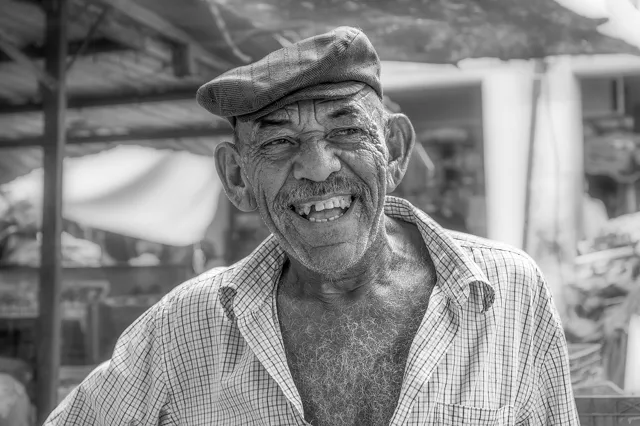
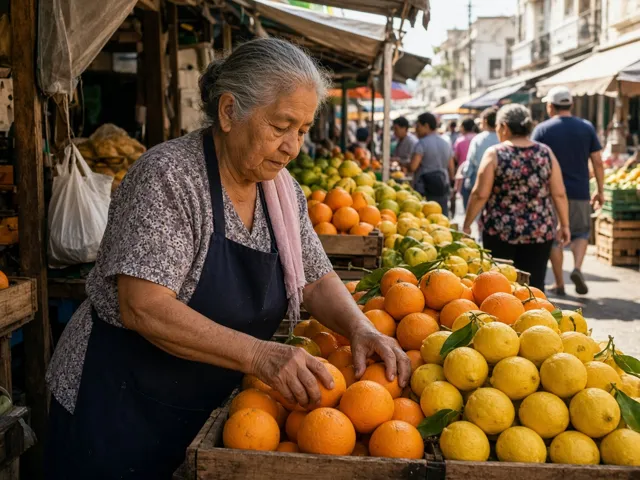

The third picture is the same real coffee photo that scored Likely real at full size. After we shrank it to 640 pixels and saved it at low JPEG quality, it came back Uncertain. That is why the original file matters.
How to tell if an image is AI
A detector is fast, but your own eyes and a little research still help, especially when the result is Uncertain. None of these signs proves anything alone. Look for several that point the same way.
- Hands and small body parts. Count fingers and look at how hands hold objects. Ears, teeth, and jewelry can also come out oddly shaped or mismatched.
- Text and logos. Signs, labels, and screens in AI pictures often contain letters that look right from a distance but do not form real words.
- Lighting and shadows. Check that shadows fall the same way for every object and that reflections in eyes, windows, and water match the scene.
- Backgrounds. Crowds, buildings, and patterns in the background can melt together, repeat, or stop making sense when you zoom in.
- Too-perfect texture. Very smooth skin, plastic-looking surfaces, or a glossy finish everywhere can be a hint, though phone beauty filters cause this too.
- Metadata and C2PA. Camera make and model in the file metadata, or a C2PA content-credential marker, can tell you where a picture came from. Missing metadata proves nothing, because many websites strip it.
- Reverse image search. Search for the picture with a reverse image search engine. Finding the original photographer, an older copy, or a post that says it was generated tells you more than any single pixel.
When should you use a detector instead of relying on your eyes? Whenever the picture is photorealistic and the obvious signs are missing. Newer generators make fewer visible mistakes, and a model that looks at pixel-level patterns can pick up signals you cannot see. The best approach is both: run the check, then look for the signs above.
When the result can be wrong
Every AI detector makes mistakes. A real photo can be flagged as AI generated, and an AI picture can pass as real. These situations make mistakes more likely:
- Heavy compression. Pictures that were shrunk or passed through messaging apps lose fine detail.
- Screenshots. A screenshot is a new image of a screen and can hide or add patterns.
- Edited photos. Filters, retouching, and generative fill can push a real photo toward an AI score.
- Upscaled pictures. AI upscalers redraw detail, so an upscaled real photo can look generated.
- New generators. Pictures from very new image models may score lower until detectors catch up.
We do not publish an accuracy percentage. Use the result as one piece of evidence, together with where the picture came from.
Is this photo AI generated? FAQ
How can I tell if a picture is AI generated?
Upload it to the checker at the top of this page, or paste its image URL. You get a verdict (Likely AI-generated, Likely real, or Uncertain) and a confidence score. Then look at the picture yourself: hands, text, lighting, backgrounds, metadata, and where else the image appears online.
Is this photo AI or real? Can one check prove it?
No single check can prove it. The detector gives a model score, not a fact. A Likely real result means no strong AI signal was found, not that the photo is authentic or unedited. For anything important, combine the result with the source of the photo and the original file.
Is this picture checker free?
Yes. The free plan includes 20 checks per month. Each free result shows a verdict, a confidence score, and one key reason. Pro adds every reason, the region heatmap, and batch checking.
Do I need to sign up or give my email?
No. Free checks need no sign-up and no email.
Which picture formats can I check?
Supported formats are JPG, PNG, WebP, and HEIC. HEIC photos are converted to JPEG in your browser before upload; if your browser cannot open a HEIC file, save it as a JPEG first. Photos larger than 2048 pixels on the long side are reduced to 2048 pixels automatically. Files up to 20 MB are accepted. Video, GIFs, and audio are not supported.
Why did my real photo come back as AI generated or Uncertain?
Heavy compression, screenshots, strong edits or filters, and upscaling can all change the pixels the detector relies on. In our own test, shrinking and recompressing a real coffee photo moved its result from Likely real to Uncertain. Try the original file if you can.
Do you keep the pictures I upload?
No. The uploaded file is kept only long enough to analyze it, then deleted. The text result is stored for one hour so you can view it, then removed.
Can I check many pictures at once?
Yes, with Pro or Max. The AI image checker page lets you select up to 20 images in one batch and shows a result for each.
More ways to check
For a quick single check, use the home page tool for is this image ai. To check many images at once, open the ai image checker. Plans and limits are on the pricing page.